How to Use a DEPSTECH Camera
To use a DEPSTECH camera, connect the probe to your phone or turn on its built-in screen, then guide the cable slowly while adjusting the light and viewing angle. Record images only after the camera is positioned steadily and clean the probe before storing it.
On this page (10 sections)
- How to Use a DEPSTECH Camera
- What should you do before using a DEPSTECH camera?
- How do you connect a DEPSTECH camera to a phone?
- How do you use a DEPSTECH camera with a built-in screen?
- How do you adjust the DEPSTECH camera image?
- How do you switch lenses and viewing angles?
- How do you guide the cable through a drain or tight space?
- How should you record and review an inspection?
- How do you clean and store a DEPSTECH camera?
- What is the simplest way to use a DEPSTECH camera?
How to Use a DEPSTECH Camera
To use a DEPSTECH camera, connect the probe to your phone or switch on its built-in screen, then guide the semi-rigid cable slowly while adjusting light and lens views. The clearest results come from steady cable movement, a clean lens, and enough distance for the camera to focus.
DEPSTECH sells both phone-connected and screen-based inspection cameras. The steps below cover setup, viewing, recording, drain work, and storage without assuming that every model uses the same controls.
If your main goal is a home drain inspection, our guide to how to use a sewer camera explains the wider process, including planning the inspection and handling a longer line.
What should you do before using a DEPSTECH camera?
Choose the viewing device first, charge it, and inspect the probe before inserting it. Phone-based models need the DEPSTECHCAM app, while screen-based models show the camera view on their own display.
Clear a work area so the cable can extend without catching on furniture, tools, or sharp edges. Lay out the hook or magnet only if you need to retrieve a small item, and attach accessories only after removing any protective cap where required.
Check the cable for cuts, kinks, or a loose camera head. A semi-rigid cable holds its shape when bent, but forcing a tight turn can make steering harder and can damage the cable.
For a general overview of camera features and use cases, compare these sewer cameras for home use. A handheld borescope is useful for smaller openings, while a dedicated sewer camera suits longer drain runs.
How do you connect a DEPSTECH camera to a phone?
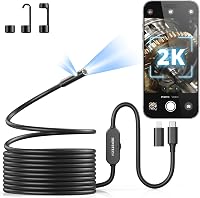
Plug the camera into the correct phone connector, install DEPSTECHCAM, and enable OTG on Android when required. The DEPSTECH 2K Endoscope Camera with Light includes a Type C connector and Lightning adapter for compatible iPhone, iPad, and Android devices.
How to use a DEPSTECH camera with the app
Install the official DEPSTECHCAM app before starting. Connect the probe, open the app, and wait for the live view to appear; the camera works through the app rather than through the phone's regular camera application.
The NTC55 supports photo and video capture, 2× zoom, 90° image rotation, and gallery review. Use the live view to position the probe first, then press the capture control once the image is steady.
Android devices need OTG support, and OTG must be enabled for the app to work. If the image does not appear, close other camera apps, reconnect the plug, and check that the phone uses the correct connector.
How do you use a DEPSTECH camera with a built-in screen?
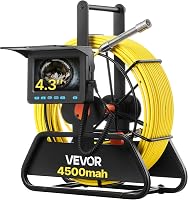
Turn on the screen, connect or extend the probe, and use the camera controls to switch views and adjust brightness. The DEPSTECH 16.5 ft Dual-Lens Endoscope Camera has a 4.3-inch IPS screen, front and side cameras, photo and video capture, and a built-in battery.
The screen-based design keeps the inspection view separate from your phone. Its camera orientation rotates 180°, and the controls switch between 3 observation modes, including a wider 70° viewing option.
Charge the unit before a long inspection. Its battery runs for about 4 hours, and the 16.5 ft cable keeps its shape when bent, which helps when you need to hold a direction through a narrow opening.
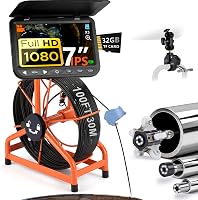
The DEPSTECH Triple Lens Inspection Endoscope Camera with Light, 5" IPS Screen uses a 5-inch IPS display and 3 lenses. Press the lens button instead of repeatedly twisting the probe, then save photos or video to a microSD card when documentation is useful.
Which DEPSTECH camera suits a phone inspection?
Choose the 2K model when your phone is compatible and you want app controls, 2K resolution, and both front and side views. Choose the 4.3-inch model when you prefer a dedicated screen and a longer battery session.
The triple-lens model is the practical pick when switching among 3 angles matters more than using a phone. Its 5-inch screen also gives you a larger built-in viewing area during work.
How do you adjust the DEPSTECH camera image?
Start with medium lighting and move the camera to the correct focus distance before using zoom. Too much light can wash out a reflective surface, while too little light hides details in a dark pipe or cavity.
The 2K model has 8+1 adjustable LEDs. The dual-lens screen model has 7 LEDs with 3 brightness levels, and the triple-lens model has 10 adjustable LEDs.
Change one setting at a time. Lower the light if a wet surface creates glare, then move the camera slightly farther from the target.
If a dark area remains unclear, raise the brightness gradually instead of pushing the camera directly against the surface.
The NTC55 front lens focuses from 0.78 to 3.93 in, while its side lens focuses from 0.78 to 2.36 in. The DS300 front camera focuses from 1.2 to 3.1 in, and its side camera focuses from 0.8 to 2.4 in.
How do you switch lenses and viewing angles?
Switch lenses when the forward view stops showing useful detail, rather than bending the cable sharply to force a new angle. A side camera can show the wall of a pipe, the back of a cavity, or the edge of an obstruction.
On the phone-connected NTC55, use the app to change between the front and side cameras. The dual-lens screen model switches views with a button and offers 3 observation modes.
The DS620 triple-lens camera changes among 3 lenses with one button. This helps when you need several angles in one passage and want to leave the cable in roughly the same position.
Move the probe a short distance, pause, and compare the image after each lens change. Recording every adjustment can create clutter, so save the clearest view of the defect, connection, blockage, or object you need to document.
For work inside a low-clearance area, an inspection camera for crawl space can help you compare handheld viewing needs with a larger inspection setup.
How do you guide the cable through a drain or tight space?
Push the cable in short sections, rotate it gently, and stop when resistance increases sharply. Semi-rigid cable helps with control, but it does not remove the need to work around bends and fragile edges.
Keep one hand near the opening to support the cable. Use the other hand farther back to feed it forward, keeping the curve broad instead of creating a tight kink.
Pause after every bend and check the live image. If the view spins or the cable springs back, withdraw slightly and change the entry angle.
For damp or underwater areas, the camera probes have IP67 waterproof ratings. Keep the connected phone or screen away from water, and never place a charging cable or exposed connector in the wet work area.
Do not use the magnet or hook as a substitute for careful cable control. Attach the accessory when retrieval is the goal, then pull slowly so it does not snag on the opening.
How should you record and review an inspection?
Record only after the camera is steady and the target is in focus. A short video can show movement through a pipe, while a still image is easier to review when you need one clear detail.
Use the NTC55 app to capture photos or video, apply 2× zoom when useful, and review files in the app gallery. The dual-lens screen model captures 2MP photos and 1080P video, with JPEG or PNG photo formats.
The DS620 records 2MP photos and 1080P video, then stores media on a microSD card. The card is not included, so plan your storage before a documentation-heavy inspection.
Give each file a simple name after the work if your device allows it. Note the access point and the direction of travel in a separate job record, since an image alone may not show where it was taken.
How do you clean and store a DEPSTECH camera?
Wipe the probe clean, dry it fully, and coil the cable loosely before storage. Cleaning the lens is the fastest way to restore a clear image after work in a drain, engine space, or dusty cavity.
Use a soft cloth on the camera head and cable. Remove damp residue before placing the probe in a case or drawer, and keep the screen, phone connector, and charging port away from water.
Do not pull the cable by the camera head. Support the probe while withdrawing it, especially when the cable has passed through a bend.
Remove the hook or magnet after retrieval work, and replace the protective cap on the NTC55 before storage. Keep accessories together so the next inspection starts with a complete setup.
Recharge the screen-based model after use if you expect to need it soon. Store media from the app or microSD card in the folder used for the job, then clear old files when storage becomes crowded.
What is the simplest way to use a DEPSTECH camera?
Pick the NTC55 for a compatible phone, the DS300 for a dedicated 4.3-inch screen, or the DS620 for one-button access to 3 camera angles. All 3 choices use 16.5 ft cables and support close inspection of drains, pipes, walls, vehicles, HVAC spaces, or machinery.
For how to use a DEPSTECH camera on a phone, connect the NTC55, open DEPSTECHCAM, enable Android OTG when needed, and use the front or side lens with controlled lighting. For screen-based work, turn on the display, switch views with the camera button, and record only steady images.
Guide the cable slowly, protect the connected device from water, and dry the probe before storing it. When your next step is a full drain-line inspection, continue with how to use a sewer camera for a broader workflow.
Frequently asked questions
Can you use a DEPSTECH camera without Wi-Fi?
The DEPSTECH 2K Endoscope Camera with Light uses its app locally and does not require an internet connection or user registration. The screen-based models display the camera view on their built-in screens, so Wi-Fi is not part of the basic inspection process.
How far can a DEPSTECH inspection camera reach?
The products covered here use 16.5 ft semi-rigid cables. That length can reach many household drains, pipes, walls, HVAC spaces, and vehicle compartments, but the useful distance depends on bends, openings, and how easily you can guide the cable.
Can a DEPSTECH camera go underwater?
The probes described here have IP67 waterproof ratings, which suit damp areas and underwater use. Keep the phone, screen, connectors, and charging connections dry, and clean and dry the probe after the inspection.
Why is my DEPSTECH camera image blurry?
A blurry image often means the lens is outside its focus range, too close to the target, or covered with dirt or moisture. Move the probe slowly, adjust its distance, change the light level, and wipe the lens before trying again.